
Find which port SQL Server is using


By default, SQL Server listens on port 1433 for TCP/IP connections . But what if this was changed and what about a named instance? You can find the listener port in 3 ways:

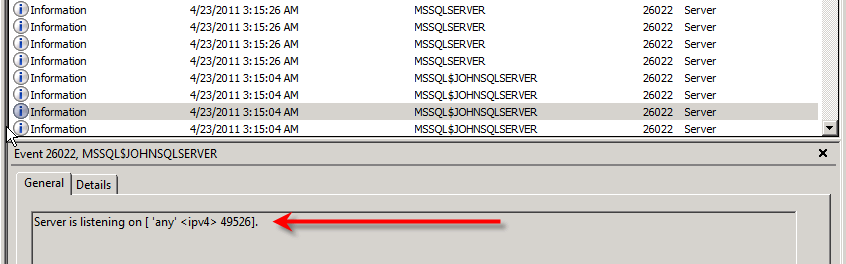
  1. Check the Windows Application event log – Event ID 26022
  2. Use SQL Server configuration Manager
  3. Query the Windows Registry

Windows Application Event Log

Each time an instance starts, SQL Server will record its listening port(s) in the Windows Event Viewer. To find this, open up the Windows Event Viewer and choose the ‘Application’ event log. If you filter on Event ID 26022, you should see four events associated with the start-up. Look for the event that has this in the message body:(Server is listening on any ‘1432’)


SQL Server Configuration Manger

 SQL Server Configuration Manager. Open it up and expand ‘SQL Server Network Configuration’ in the left hand pane. You’ll see menu items for protocols for your various instances. Single click one of the protocol menu items and you’ll get a list of protocols for that instance appearing in the right hand pane. Right click ‘TCP/IP’ and choose ‘Properties’:

Choose the ‘IP Addresses’ tab. Scroll to the bottom of the list and find the ‘IPAll’ section. The ‘TCP Port’ setting will have the listening port, unless the instance is set up to listen dynamically. If so, the ‘TCP Dynamic Ports’ setting will contain the listening port:

Using the Windows Registry

DECLARE @InstName VARCHAR(16)

DECLARE @RegLoc VARCHAR(100)

SELECT @InstName = @@SERVICENAME

IF @InstName = ‘MSSQLSERVER’
  BEGIN
    SET @RegLoc=’Software\Microsoft\MSSQLServer\MSSQLServer\SuperSocketNetLib\Tcp\’
  END
 ELSE
  BEGIN
   SET @RegLoc=’Software\Microsoft\Microsoft SQL Server\’ + @InstName + ‘\MSSQLServer\SuperSocketNetLib\Tcp\’
  END

EXEC [master].[dbo].[xp_regread] ‘HKEY_LOCAL_MACHINE’, @RegLoc, ‘tcpPort’

Convert Date


in this article will learn how to convert date :

  • 1- From AD to Hegira
  • 2- From Hegira to AD

AD = “01/01/2011”   & Hegira  = “01/01/1432”

  1. Convert Date From AD To Hegira

EXAMPLE NO 1

set dateformat dmy
DECLARE @DATEM DATETIME
DECLARE @ResultH NCHAR(10)
SET @DATEM = ’19/03/2011′
SET @ResultH = (SELECT CONVERT(NCHAR(10), @DATEM, 131))
SELECT @ResultH
PRINT ‘The Date Time IS’ + ‘ ‘ + CAST(@ResultH AS NVARCHAR(50))
PRINT ‘————————————-‘

—————————————————————————————————–

EXAMPLE NO 2

Create Table Convert_Date
(ID int,
[date] datetime)

—- data type of [date] column must be datetime but if you will insert Hegira date the column data type must be Nvarchar
GO
Insert  into Convert_Date values (3,’01/01/2011′),(3,’10/09/2011′)
GO
SET DATEFORMAT DMY
SELECT   ID,[DATE] ,CONVERT(NCHAR(10),CAST([DATE] AS DATETIME ) ,131)
AS  Hegira FROM Convert_Date

—————————————————————————————————-

2-Convert Date From Hegira  to AD

Example No 1
DECLARE @ResultM DATETIME
DECLARE @DateH NVARCHAR(50)
SET @DATEH = ’09/04/1405′
SET @ResultM = (SELECT CONVERT(DATETIME, @dateH, 130))
SELECT CONVERT(NCHAR(10),@ResultM,103)
PRINT ‘The Date Time IS ‘ + ‘ ‘ + CAST(@ResultM AS NVARCHAR(50))
PRINT ‘————————————-‘

Shrink Log File in all databases


/*
Only use this script for SQL Server development servers!
Script must be executed as sysadmin

This script will execute the following actions on all databases
– set recovery model to [Simple]
– trucate log file
– shrink log file
*/

use [master]
go

— Declare container variabels for each column we select in the cursor
declare @databaseName nvarchar(128)

— Define the cursor name
declare databaseCursor cursor
— Define the dataset to loop
for
select [name] from sys.databases

— Start loop
open databaseCursor

— Get information from the first row
fetch next from databaseCursor into @databaseName

— Loop until there are no more rows
while @@fetch_status = 0
begin
print ‘Setting recovery model to Simple for database [‘ + @databaseName + ‘]’
exec(‘alter database [‘ + @databaseName + ‘] set recovery Simple’)

checkpoint

Print ‘checkpoint’

print ‘Shrinking logfile for database [‘ + @databaseName + ‘]’
exec(‘
use [‘ + @databaseName + ‘];’ +’

declare @logfileName nvarchar(128);
set @logfileName = (
select top 1 [name] from sys.database_files where [type] = 1
);
dbcc shrinkfile(@logfileName,1);
‘)

— Get information from next row
fetch next from databaseCursor into @databaseName
end

— End loop and clean up
close databaseCursor
deallocate databaseCursor
go

SQL Server 2008 Recovery Models


Full Recovery Model

The Full Recovery Model is the most resistant to data loss of all the recovery models. The Full Recovery Model makes full use of the transaction log – all database operations are written to the transaction log. This includes all DML statements, but also whenever BCP or bulk insert is used.

For heavy OLTP databases, there is overhead associated with logging all of the transactions, and the transaction log must be continually backed up to prevent it from getting too large.

Benefits:

  • Most resistant to data loss
  • Most flexible recovery options – including point in time recovery

Disadvantages:

  • Can take up a lot of disk space
  • Requires database administrator time and patience to be used properly

Bulk-Logged Recovery Model

The Bulk-Logged Recovery Model differs from the Full Recovery Model in that rows that are inserted during bulk operations aren’t logged – yet a full restore is still possible because the extents that have been changed are tracked.

The following transactions are minimally logged in a Bulk-Logged Recovery Model:

  • SELECT INTO
  • bcp and BULK INSERT
  • CREATE INDEX
  • Text and Image operations

Benefits:

  • Transaction log stays small
  • Easier from an administration standpoint (don’t have to worry about transaction logs)

Disadvantages:

  • Not for production systems
  • Point in time recovery not possible
  • Least data resistant recovery model

Simple Recovery Model

The simple recovery model is the most open to data loss. The transaction log can’t be backed up and is automatically truncated at checkpoints. This potential loss of data is makes the simple recovery model a poor choice for production databases. This option can take up less disk space since the transaction log is constantly truncated.

Benefits:

  • Transaction log stays small
  • Easier from an administration standpoint (don’t have to worry about transaction logs)

Disadvantages:

  • Not for production systems
  • Point in time recovery not possible
  • Least data resistant recovery model

How To See What Recovery Model SQL Server 2005 is Using

What recovery model is my SQL Server 2008 database using? It is easy enough to find out by following the steps below.

The recovery model can be determined in SQL Server 2005 by accessing the properties of the database. To do this, you can right click on the database in Object Explorer and select “properties”  After right clicking on properties, the SQL Server 2005 Database Properties window appears. Left click on options. The recovery model will be revealed to the right. In the screenshot below, you can see what is your recovery  model.


SQL Server 2005 Recovery Models Comparison Chart


Reindexing in SQL Server 2008


This is an handy script to rebuild index in SQL Server 2005

–USE DATABASENAME
USE GEN2011;

DECLARE @TableName varchar(255);

DECLARE TableCursor CURSOR FOR
SELECT table_name FROM information_schema.tables
WHERE table_type = ‘base table’

OPEN TableCursor

FETCH NEXT FROM TableCursor INTO @TableName
WHILE @@FETCH_STATUS = 0
BEGIN

PRINT ‘Reindexing ‘ + @TableName
DBCC DBREINDEX(@TableName,’ ‘,90)
FETCH NEXT FROM TableCursor INTO @TableName

END
CLOSE TableCursor
DEALLOCATE TableCursor