Policy # Check the Data and Log file Extensions for All Dataabases


Today i will explain how to Check all Data file and log file for all your database we will check the Extensions for (MDF , NDF , LDF) by using policy management .

1- Create Conditions

at the first we will create 2 condition one for Data file and the other for Log file

I- Data File Extensions Condition

Open SQL Server Management studio >>> Mangment >>> Policy Mangment >>> Conditions >>>> Right Click on it >>> New Condition

Name : Data File Extensions .

Facet  : Data File .

Field : @File name

Data File Extensions Conditions

II – Log File Extensions Conditions :

Open SQL Server Management studio >>> Mangment >>> Policy Mangment >>> Conditions >>>> Right Click on it >>> New Condition

Name : Log File Extensions .

Facet  : Data File .

Field : @File name

Log File Extensions Conditions

2- Create policy :

Now we will Create 2 Policy one “Check Data File” and the Other is “Check log File”

I – Policy – Check Data File :

Open SQL Server Management studio >>> Mangment >>> Policy Mangment >>> Policies>>>> Right Click on it >>> New Policy

Name : Check Data File  .

Check Condition : Data File Extensions

Check Data File Policy

II – Policy – Check Log File :

Open SQL Server Management studio >>> Mangment >>> Policy Mangment >>> Policies>>>> Right Click on it >>> New Policy

Name : Check Log File  .

Check Condition : Log File Extensions

Check log File Policy

Now after we create the policy if you go to Policies and right click on Policy name ” Check Data File ” >>> Evaluate

Evaluate

After the Evaluate Finish you will find the Data file for your all databases in your SQl Server Instance if you clicked on View you will See the Full path to the MDF and NDF

in my example now i have MDF only no File Extensions  With NDF so i have More Cross

I Wish Success To Everyone

Eng. Mostafa Elmasry

Database Administrator

How to Transfer SQL Server Jobs Task from Source Server to Distention Server!


Question :

How i can transfer SQL Server jobs Task from Source Server to Distention Server without T-SQL Script ?

Answer :

We can do that by SSIS ” SQL SERVER INTEGRATION SERVICES ”  by creating new package on it to transfer the jobs task from one server to another server.

Note : also by SSIS i can trnsfer

1- Database Task

2- Error Massage Task

3- Login Task

4- Master Stored procedure Task

5- SQL Server objects Task


Demo to how to transfer SQL Server jobs task :

1- open Start menu >>> SQL Server >>>  SQL Server Business Intelligence Development Studio >>> File Menu >>> New >>> project >>> Select project type is Business Intelligence Projects from the left bar >>> select from the Right template Integration Services Project >>>write name for this Project EX (Transfer Jobs) >>> Choose your path to save the project >>> OK

Transfer Jobs_1

2- from the left Select from the Toolbox Menu under the Control flow items >>> Transfer job Task  >>> Drag and Drop this task on Control flow page >>> right click on the task >>> Select Edit .

 Transfer Jobs_2


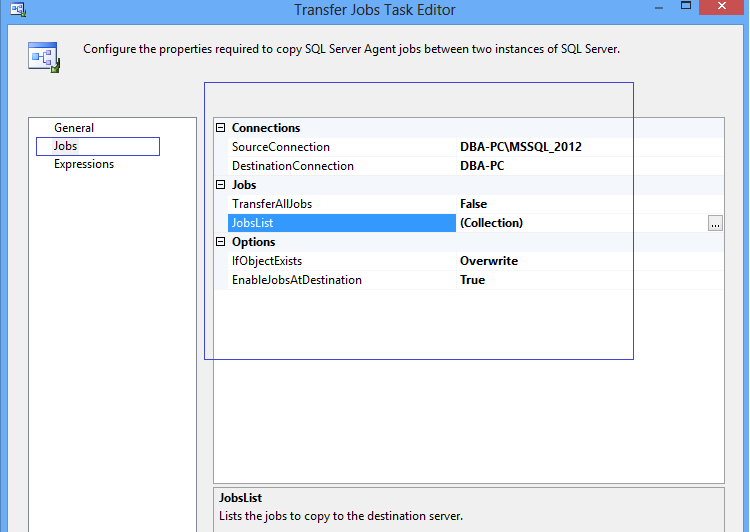
3- After the Edit we will view New Screen ” Transfer Jobs Task Editor ” >>> Select jobs from the left bar .

4- We have 3 Group :

A- Connection :

Source Connection           : The SQL Server Instance the Jobs Crated on it .

Destination Connection : The SQL Server you need to referrer the jobs to it .

B- Jobs :

Transfer All Jobs : False if you don’t need to transfer All jobs and this is Default Value , True  if you need to transfer All jobs .

Job List : if you select The transfer All jobs is FALSE Select from here the Jobs list you need to transfer it to another Server .

C- Option :

If Object Exist : Meaning if the one Job from the List job you need to transfer it to another Server it’s Created already on this Server you will Select from this 3 Value

  • FailTask : If the job Found Fail The task.
  • Overwrite : if the job Found Overwrite on it .
  • Skip : if the job Found Skip this job

EnablejobsAtDistention : False = Disable , True = Enable .

After you finish your Configuration Click OK

Transfer Jobs_3

4- now we need to run the task by F5 or Click on play icon to execute the package.

5- Now Check your Distinction SQL Server Agent Jobs you will found the New Jobs you Selected it to Transfer .

I Wish Success To Everyone

Eng. Mostafa Elmasry

Database Administrator

DBA Check List


Any DBA must now :

How to become As DBA ?

What is General DBA Best Practices ?

What DBA do Day-to-Day

And more tips like Installation , Upgrade , maintenance , performance , High Availibilty , and other Services (SSIS,SSAS,SSRS)

So if you need to know more about this Check this Link is very useful to any DBA (SQL Server , Or Oracle )

https://www.simple-talk.com/sql/database-administration/brads-sure-dba-checklist/

the use of “SET NOCOUNT ON;” in SQL Server?


This statement is used to stop the message that shows the count of the number of rows affected by the SQL statement written in the stored procedure or directly SQL Statement

When it is ON - the number of affected rows will not be returned 
When it is OFF - the number of affected rows will be returned

Example 


USE AdventureWorks2012;
GO
SET NOCOUNT OFF;
GO
-- Display the count message. The number of affected rows will be returned 
SELECT TOP(5)LastName
FROM Person.Person
WHERE LastName LIKE 'A%';
GO
-- Disable the Count massage Then Number of affected rows will not be returned.
SET NOCOUNT ON;
GO
SELECT TOP(5) LastName
FROM Person.Person
WHERE LastName LIKE 'A%';
GO
-- Reset SET NOCOUNT to OFF
SET NOCOUNT OFF;
GO

Thanks for All

Eng. Mustafa Elmasry

MSSQL DBA


How to Change the Default Database Location


Problem :

After I Create Cluster and I make 2 Share Disk one for Data and the another for Logs I forget to Customize the location For the database What can I do to Change this Location ?

Salutation : 

You have two ways the first by T-SQL and the Second is Wizard Steps :

First Way:

A- Change the Default location for data file :

EXEC xp_instance_regwrite

N’HKEY_LOCAL_MACHINE’,

N’Software\Microsoft\MSSQLServer\MSSQLServer’,

N’DefaultData’,

REG_SZ

,N’F:\MSSQL10_50.MSSQLSERVER\MSSQL\DATA’

GO

B- Change the Default location for Logs file :

EXEC xp_instance_regwrite

N’HKEY_LOCAL_MACHINE’,

N’Software\Microsoft\MSSQLServer\MSSQLServer’,

N’DefaultLog’,

REG_SZ

,N’G:\MSSQL10_50.MSSQLSERVER\MSSQL\Log’

GO

Second Way:

Open the management Studio >>> Write Click on the Server >>> Select properties

Change1

Then Select Database Setting >>> you Will See Database Default Location

Change2