
use master
go
Dbcc sqlperf(logspace)
go
Script to check log space
use master
go
Dbcc sqlperf(logspace)
go
use master
go
Dbcc sqlperf(logspace)
go
— ***********************************************************************************/
— Description : Script to check how long the SQL Services were up
— Following script will list down time for SQL Services are running and Current Status of SQL Server Agent too
— ***********************************************************************************/
SET NOCOUNT ON
DECLARE @crdate
DATETIME, @hr VARCHAR(50), @min VARCHAR(5)
SELECT @crdate=crdate FROM sysdatabases WHERE NAME=’tempdb’
SELECT @hr=(DATEDIFF ( mi, @crdate,GETDATE()))/60
IF ((DATEDIFF ( mi, @crdate,GETDATE()))/60)=0
SELECT @min=(DATEDIFF ( mi, @crdate,GETDATE()))
ELSE
SELECT @min=(DATEDIFF ( mi, @crdate,GETDATE()))-((DATEDIFF( mi, @crdate,GETDATE()))/60)*60
PRINT ‘SQL Server “‘ + CONVERT(VARCHAR(20),SERVERPROPERTY(‘SERVERNAME’))+'” is Online for the past ‘+@hr+’ hours & ‘+@min+’ minutes’
IF NOT EXISTS (SELECT 1 FROM master.dbo.sysprocesses WHERE program_name = N’SQLAgent – Generic Refresher’)
BEGIN
PRINT ‘SQL Server is running but SQL Server Agent <<NOT>> running’
END
ELSE
BEGIN
PRINT ‘SQL Server and SQL Server Agent both are running’
END
go
now I will make trigger to prevent user to connect to sql server instance in time between 5 pm to 7 am
and if he want to connect in this time i will save this transaction in database login in my SQL server
i will used datatype sysname
is a built in datatype limited to 128 Unicode characters that, IIRC, is used primarily to store object names when creating scripts. It’s value cannot be NULL (sysname = nvarchar(128) not null)
— Create Login
Create Login Elmasry WITH PASSWORD = ‘egypt’
GO
Create Login Elmasry WITH PASSWORD = ‘egypt’
GO
—Create Database Login_info
CREATE DATABASE Login_Info
GO
USE Login_Info
GO
CREATE TABLE dbo.restrictedlogons
(loginid sysname not null, timestamp datetime not null)
go
use master
go
–Create Trigger
create trigger Prevent_USer_Login
on all server
for logon
as
begin
if original_login () = ‘Elmasry’ and
datepart(hh,getdate()) between 17 and 24
begin
rollback
insert Login_Info.dbo.restrictedlogons
(loginid,timestamp)
values (original_login(),getdate())
end
end
GO
–Drop User Name
IF EXISTS (SELECT * FROM sys.database_principals WHERE name = N’Elmasry’)
DROP USER Elmasry
Go
—Drop Database
drop database Login_Info
Go
—Disable Trigger
USE Mastre;
GO
DISABLE TRIGGER Prevent_USer_Login ON All Server;
GO
—Drop Trigger
USE MASTER;
GO
DROP TRIGGER Prevent_USer_Login ON ALL SERVER ;
GO
By default, SQL Server listens on port 1433 for TCP/IP connections . But what if this was changed and what about a named instance? You can find the listener port in 3 ways:
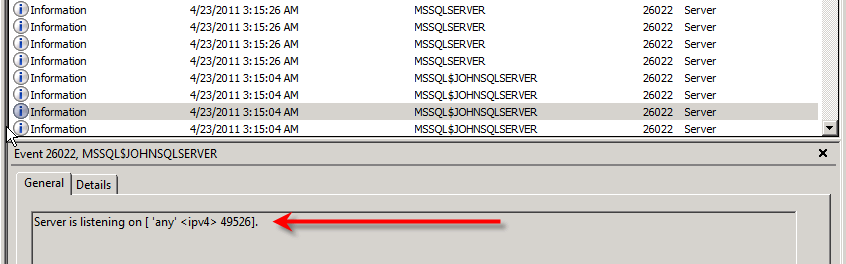
Windows Application Event Log
Each time an instance starts, SQL Server will record its listening port(s) in the Windows Event Viewer. To find this, open up the Windows Event Viewer and choose the ‘Application’ event log. If you filter on Event ID 26022, you should see four events associated with the start-up. Look for the event that has this in the message body:(Server is listening on any ‘1432’)
SQL Server Configuration Manger
SQL Server Configuration Manager. Open it up and expand ‘SQL Server Network Configuration’ in the left hand pane. You’ll see menu items for protocols for your various instances. Single click one of the protocol menu items and you’ll get a list of protocols for that instance appearing in the right hand pane. Right click ‘TCP/IP’ and choose ‘Properties’:
Choose the ‘IP Addresses’ tab. Scroll to the bottom of the list and find the ‘IPAll’ section. The ‘TCP Port’ setting will have the listening port, unless the instance is set up to listen dynamically. If so, the ‘TCP Dynamic Ports’ setting will contain the listening port:
Using the Windows Registry
DECLARE @InstName VARCHAR(16)
DECLARE @RegLoc VARCHAR(100)
SELECT @InstName = @@SERVICENAME
IF @InstName = ‘MSSQLSERVER’
BEGIN
SET @RegLoc=’Software\Microsoft\MSSQLServer\MSSQLServer\SuperSocketNetLib\Tcp\’
END
ELSE
BEGIN
SET @RegLoc=’Software\Microsoft\Microsoft SQL Server\’ + @InstName + ‘\MSSQLServer\SuperSocketNetLib\Tcp\’
END
EXEC [master].[dbo].[xp_regread] ‘HKEY_LOCAL_MACHINE’, @RegLoc, ‘tcpPort’
/*
Only use this script for SQL Server development servers!
Script must be executed as sysadmin
This script will execute the following actions on all databases
– set recovery model to [Simple]
– trucate log file
– shrink log file
*/
use [master]
go
— Declare container variabels for each column we select in the cursor
declare @databaseName nvarchar(128)
— Define the cursor name
declare databaseCursor cursor
— Define the dataset to loop
for
select [name] from sys.databases
— Start loop
open databaseCursor
— Get information from the first row
fetch next from databaseCursor into @databaseName
— Loop until there are no more rows
while @@fetch_status = 0
begin
print ‘Setting recovery model to Simple for database [‘ + @databaseName + ‘]’
exec(‘alter database [‘ + @databaseName + ‘] set recovery Simple’)
checkpoint
Print ‘checkpoint’
print ‘Shrinking logfile for database [‘ + @databaseName + ‘]’
exec(‘
use [‘ + @databaseName + ‘];’ +’
declare @logfileName nvarchar(128);
set @logfileName = (
select top 1 [name] from sys.database_files where [type] = 1
);
dbcc shrinkfile(@logfileName,1);
‘)
— Get information from next row
fetch next from databaseCursor into @databaseName
end
— End loop and clean up
close databaseCursor
deallocate databaseCursor
go
 DB Cloud TECH