
Enable Remote Connection on SQL Server 2008


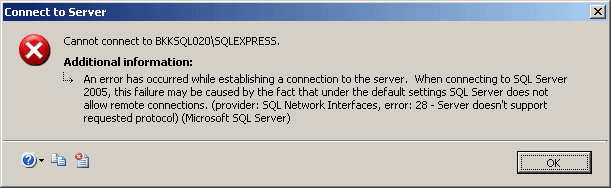
“Cannot connect to SQL-Server-Instance-Name
An error has occurred while establishing a connection to the server.
When connecting to SQL Server 2005, this failure may be caused by the
fact that under the default settings SQL Server does not allow remote
connections. (provider: SQL Network Interfaces, error: 28 – Server
doesn’t support requested protocol) (Microsoft SQL Server)”


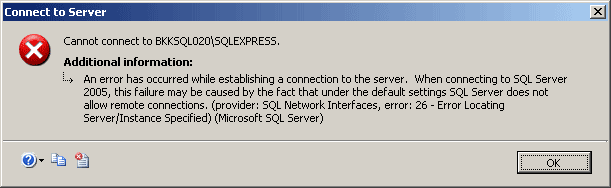
“Cannot connect to SQL-Server-Instance-Name
An error has occurred while establishing a connection to the server.
When connecting to SQL Server 2005, this failure may be caused by the
fact that under the default settings SQL Server does not allow remote
connections. (provider: SQL Network Interfaces, error: 26 – Error
Locating Server/Instance Specified) (Microsoft SQL Server)”


“Cannot connect to SQL-Server-Instance-Name
Login failed for user ‘username‘. (Microsoft SQL Server, Error: 18456)”


To enable remote connection on SQL Server

  1. Start SQL Server Browser service if it’s not started yet. SQL Server Browser listens for incoming requests for Microsoft SQL Server resources and provides information about SQL Server instances installed on the computer.
  2. Enable TCP/IP protocol for SQL Server 2008 to accept remote connection.
  3. (Optional)
    Change Server Authentication to SQL Server and Windows Authentication. By default, SQL Server 2008 allows only Windows Authentication mode so you can connect to the SQL Server with current user log-on credential. If you want to specify user for connect to the SQL Server, you have to change Server Authentication to SQL Server and Windows Authentication.

Note: In SQL Server 2008 , there isn’t SQL Server Surface Area Configuration so you have to configure from SQL Server Configuration Manager instead.
Step-by-step

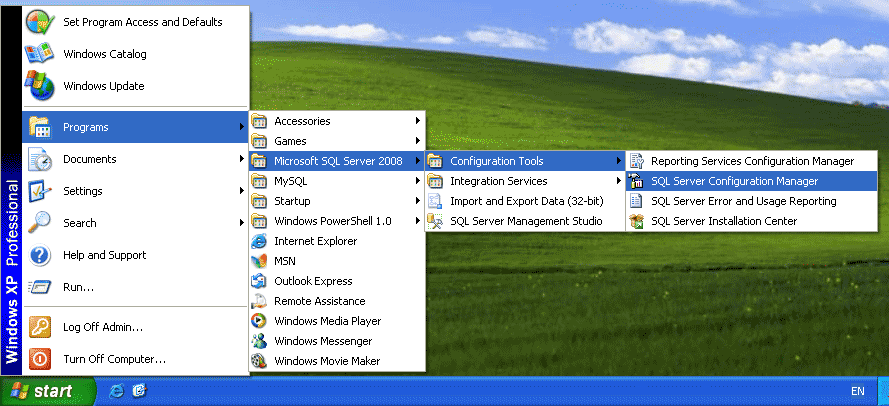
1- Open SQL Server Configuration Manager. Click Start -> Programs-> Microsoft SQL Server 2008 -> Configuration Tools -> SQL Server Configuration Manager.


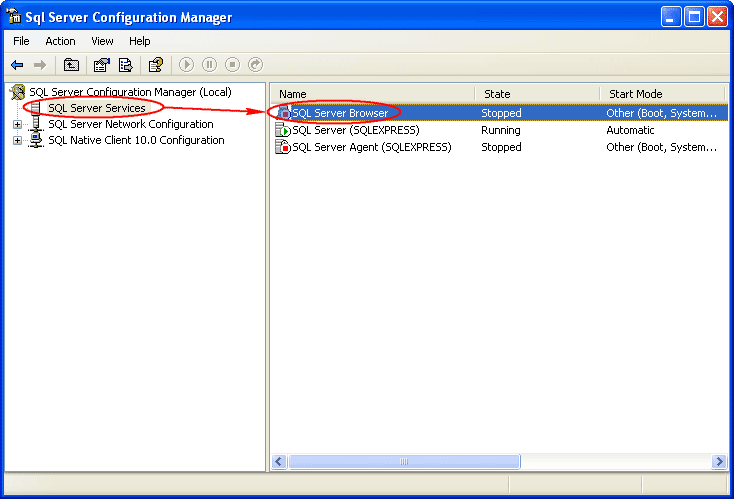
2- On SQL Server Configuration Manager, select SQL Server Services on the left window. If the state on SQL Server Browser is not running, you have to configure and start the service


3- Double-click on SQL Server Browser, the Properties window will show up. Set the account for start SQL Server Browser Service. In this example, I set to Local Service account.


4- On SQL Server Browser Properties, move to Service tab and change Start Mode to Automatic. Therefore, the service will be start automatically when the computer starts. Click OK to apply changes.


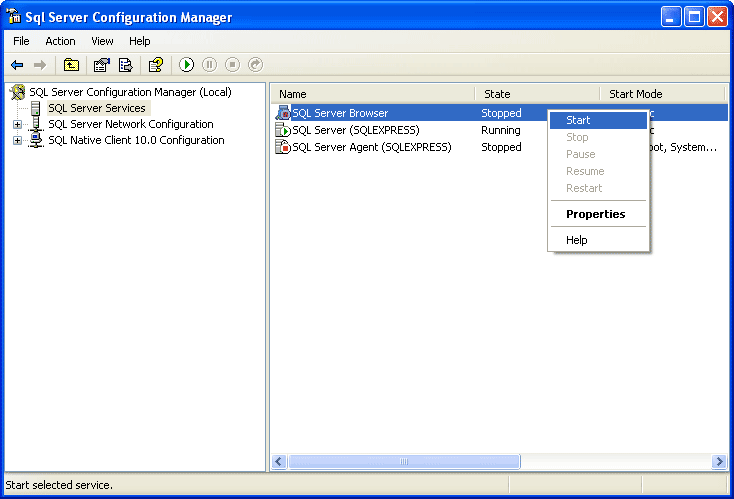
5- Back to SQL Server Configuration Manager, right-click on SQL Server Bowser on the right window and select Start to start the service.


6-On the left window, expand SQL Server Network Configuration -> Protocols for SQLEXPRESS. You see that TCP/IP protocol status is disabled.


7- Right-click on TCP/IP and select Enable to enable the protocol.


8- On the left window, select SQL Server Services. Select SQL Server (INSTANCE NAME) on the right window -> click Restart. The SQL Server service will be restarted.


9-Open Microsoft SQL Server Management Studio and connect to the SQL Server 2008 Express.

10- Right-click on the SQL Server Instance and select Properties.


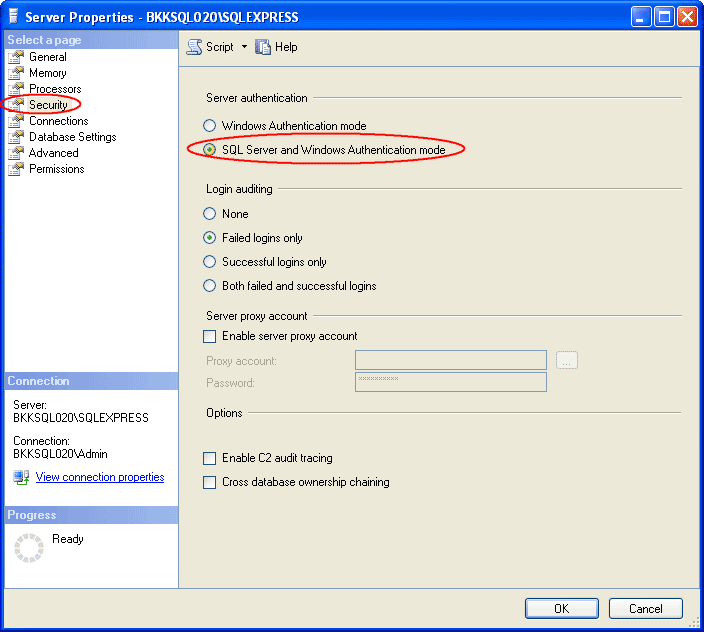
11- On Server Properties, select Security on the left window. Then, select SQL Server and Windows Authentication mode.
12 -Right-click on the SQL Server Instance and select Restart.

Trigger to Prevent any user to Create Table on Database


Event Can prevent happend on your database
CREATE_TABLE
CREATE_INDEX
CREATE_FUNCTION

Example

USE
DBNAME;
GO
CREATE TRIGGER Prevent_Create

ON
DATABASE FOR CREATE_TABLE
AS
PRINT ‘CREATE TABLE Issued.’
SELECT EVENTDATA().value
(‘(/EVENT_INSTANCE/TSQLCommand/CommandText)[1]’,’nvarchar(max)’)
RAISERROR (‘New tables cannot be created in this database.’, 16, 1)
ROLLBACK;
GO
–Test the trigger.
CREATE TABLE T2 (C1 int);
GO
–Drop the trigger.
DROP TRIGGER Prevent_Create_Table ON DATABASE;
GO

troubleshoot The Connectivity Issues


1. Check your SQL Server Error log to make sure that it enables TCP/IP protocol and establish the listening on a specific TCP port.Normally, if SQL Server is configured to enable TCP/IP protocol, when it starts it will log a message similar to the following error log: 2010-01-04 12:30:40.47 Server Server is listening on [ ‘any’ <ipv4> 1433].

This means that the SQL Server instance is using TCP/IP protocol and listening on the TCP port 1433.

2. Enable TCP/IP protocol if you could not find the message in the Error Log.

You can enable protocols via SQL Server Configuration Manager. Under SQL Server Network Configuration->Protocols for <instance name>, enable TCP/IP protocol.

3. Check Network issue after TCP/IP enabled.

To check if your network is healthy, you can use ping and telnet orders to check.

· Run “ping -t” for 1-2 minutes to check if there any timeout response

ping -t <the remote server IP address>

If there are timeout responses, contact your network administrator to check the network issue.

· Run “telnet” command directly to the TCP port on the server to check if you can access the TCP port.

Telnet <servername> <listening tcp port>

4. Check firewall if you cannot telnet to the specific TCP port.

Ensure that the TCP port on which SQL Server is listening has been put into the exceptions of your firewall. If you connect to a named instance, it is also recommended that you put the UDP port 1434 for SQL Server Browser service into your firewall exception.

The connection issues may be due to other causes like client drivers, application configuration, authentication and ect.

Reference

http://windows.microsoft.com/en-us/windows-vista/Telnet-frequently-asked-questions 

http://blogs.msdn.com/sql_protocols/archive/2008/04/30/steps-to-troubleshoot-connectivity-issues.aspx


How do i rename my SQL Server instance?


SQL Server doesn’t support renaming the instance name directly. To work around the issue, you could use one of the following workarounds:

a) Uninstall the existed instance and install it with the new name.


b) Change the computer name and rename the part of the instance name that corresponds to the computer name.

For example, you can change a computer named MB1 that hosts an instance of SQL Server named Instance1 to another name, such as MB2. However, the instance part of the name, Instance1, will remain unchanged. In this example, the \\ComputerName\InstanceName would be changed from \\MB1\Instance1 to \\MB2\Instance1.

For a renamed default instance, run the following procedures:
sp_dropserver <old_name>;
GO
sp_addserver <new_name>, local;
GO For a renamed named instance, run the following procedures:
sp_dropserver <old_name\instancename>
GO
sp_addserver <new_name\instancename>, local

 GO


References


How to: Rename a Computer that Hosts a Stand-Alone Instance of SQL Server

http://technet.microsoft.com/en-us/library/ms143799.aspx


SQL Server memory configuration


On the Start menu, click Run. In the Open box, type gpedit.msc.

2. The Group Policy dialog box opens.

3. On the Group Policy console, expand Computer Configuration, and then expand Windows Settings.

 4. Expand Security Settings, and then expand Local Policies.

 5. Select the User Rights Assignment folder.

6. The policies will be displayed in the details pane.

7. In the pane, double-click Lock pages in memory.

8. In the Local Security Policy Setting dialog box, click Add.

 9. In the Select Users or Groups dialog box, add an account with privileges to run sqlservr.exe.

 Finally to enable AWE:

 1. In SQL Server Management Studio, right-click a server and select Properties.

2. Click the Memory node. 3. Under Server memory options, select Use AWE to allocate memory.