MSSQL 2008R2 Mirroring in Workgroup


Problem

Now if I have 3 Servers with 3 SQl server Instance but this servers not trusted = Not in domain this servers in workgroup but now I won’t to create mirroring but the last step in Mirroring Configuration need from the Services Account What I will write and the servers with no trusted . so what we can do to make this servers is trusted .

Solution

We will make link between this SQL Server instance this link not the linked server feature but that’s meaning we will make master key and Certificate on all Servers then Create users in the 3 Servers then give grant Connection to this Users on this Mirroring Endpoint Example

Server name                            Certification                user

Server A(Principle)                 CERT_A                       User_A

Server B (Mirror)                     CERT_B                       User_B

Server C (Witness)                   CERT_C                       User_C

now I create difference Certificate  and user on the servers then I will

Create Certificate Server B and C  on server A

Create Certificate Server A and C on Server B

Create Certificate Server A and B on Server C

Also I make this Steps on user then give the 3 user in the Server A and B and C grant Connection on Mirroring Endpoint by this Way I make Bridge between the 3 Servers

Step 1 On Principle Server :

USE MASTER

GO

CREATE MASTER KEY ENCRYPTION BY PASSWORD =‘Admin123’

GO

CREATE CERTIFICATE Principle_cert

WITH SUBJECT = ‘Principle certificate’

GO

CREATE ENDPOINT End_Mirroring

STATE = STARTED

ASTCP (LISTENER_PORT = 5025 , LISTENER_IP=ALL)

FOR DATABASE_MIRRORING

(AUTHENTICATION = CERTIFICATE Principle_cert , ENCRYPTION=REQUIRED ALGORITHM RC4 , ROLE=ALL)

GO

BACKUP CERTIFICATE Principle_cert

TO FILE =‘C:\certificate\Principle_cert.cer’

GO

Step no 2 On Mirror Server :

USE master

GO

CREATE MASTER KEY ENCRYPTION BY PASSWORD = ‘Admin123’

GO

CREATE CERTIFICATE Mirror_cert WITH SUBJECT = ‘Mirror certificate’

GO

CREATE ENDPOINT End_Mirroring

STATE=STARTED

ASTCP (LISTENER_PORT= 5026,LISTENER_IP=ALL)

FOR DATABASE_MIRRORING

(AUTHENTICATION=CERTIFICATE Mirror_cert , ENCRYPTION = REQUIRED ALGORITHM RC4 , ROLE=ALL)

GO

BACKUP CERTIFICATE Mirror_cert

TO FILE=‘D:\certificate\Mirror_cert.cer’;

GO

Step No 3 on Principle Server : 

Copy the Certificate ” Mirror_cert  ” From Mirror Server to the Principle Server because I will Create the Certificate Mirroring Server on Principle Server With the User name Mirror_user

USE MASTER

GO

CREATE LOGIN Mirror_login WITH PASSWORD=‘Admin123’

GO

CREATE USER Mirror_user FOR LOGIN Mirror_login

GO

CREATE CERTIFICATE Mirror_cert 

AUTHORIZATION Mirror_cert 

FROM FILE=‘C:\certificate\Mirror_cert .cer’  —–the Path of your Certificate After you Copy it

GO

GRANT CONNECT ON ENDPOINT ::End Mirroring TO [Mirror_login] ——-Give privilege to the User Mirror_login to Connect to the Mirroring Endpoint ” End_Mirroring “

GO

Step No 4 on Mirror Server : 

Copy the Certificate ” Principle_cert  ” From Principle Server to the Mirror Server because I will Create the Certificate Principle Server on Mirroring Server With the User name Principle_user

USE MASTER

GO

CREATE LOGIN Principle_login WITH PASSWORD=‘Admin123’

GO

CREATE USER Principle_user FOR LOGIN Principle_login

GO

CREATE ERTIFICATE Principle_cert

AUTHORIZATION Principle_cert

FROM FILE=‘C:\certificate\Mirror_cert .cer’  —–the Path of your Certificate After you Copy it

GO

GRANT CONNECT ON ENDPOINT :: End Mirroring TO [Principle_login] ——-Give privilege to the User Principle_login to Connect to the Mirroring Endpoint ” End_Mirroring “

Step No 5 on Witness Server : Create master Key and Certificate Witness_Cert

USE MASTER

GO

CREATE MASTER KEY ENCRYPTION BY PASSWORD=‘Admin123’

GO

CREATE CERTIFICATE Witness_cert

WITH SUBJECT=‘Witness certificate’

GO

CREATE ENDPOINT End_Mirroring

STATE=STARTED

ASTCP (LISTENER_PORT= 5027,LISTENER_IP=ALL)

FOR DATABASE_MIRRORING

(AUTHENTICATION=CERTIFICATE Witness_cert,

ENCRYPTION = REQUIRED ALGORITHM RC4 , ROLE = Witness)

GO

BACKUP ERTIFICATE witness_cert

TO FILE=‘C:\certificate\Witness_cert.cer’

GO

Step No 6 on Principle Server : 

Copy the Certificate ” ًWitness_cert  ” From Witness Server to the Principle Server because I will Create the Certificate Witness Server on Principle Server With the User name Witness_user

USE MASTER

GO

CREATE LOGIN Witness_login WITH PASSWORD=‘Admin123’

GO

CREATE USER Witness_user FOR LOGIN Witness_login

GO

CREATE CERTIFICATE Witness_cert

AUTHORIZATION Witness_user FROM FILE=‘C:\certificate\Witness_cert.cer’

GO

GRANT CONNECT ON ENDPOINT::End_Mirroring TO [Witness_login]

GO

Step No 7 on Mirror Server : 

Copy the Certificate ” ًWitness_cert  ” From Witness Server to the Mirror Server because I will Create the Certificate Witness Server on Mirror Server With the User name Witness_user

USE MASTER

GO

CREATE LOGIN Witness_login WITH PASSWORD=‘Admin123’

GO

CREATE USER Witness_user FOR LOGIN Witness_login

GO

CREATE CERTIFICATE Witness_cert

AUTHORIZATION Witness_user FROM FILE=‘C:\certificate\Witness_cert.cer’

GO

GRANT CONNECT ON ENDPOINT::End_Mirroring TO [Witness_login]

GO

Step No 8 on Witness Server :

Copy the Certificate ” Principle_cert  ” From Principle Server and  ” Mirror_cert  ” From the Mirror Server

” Principle_cert  “

USE MASTER

GO

CREATE LOGIN Principle_login WITH PASSWORD=‘Admin123’

GO

CREATE USER Principle_user FOR LOGIN Principle_login

GO

CREATE CERTIFICATE Principle_cert

AUTHORIZATION Principle_user

FROM FILE=‘D:\certificate\Principle_cert.cer’

GO

GRANT CONNECT ON ENDPOINT::End_Mirroring TO [Principle_login]

GO

” Mirror_cert  “

CREATE LOGIN Mirror_login WITH PASSWORD=‘Admin123’

GO

CREATE USER Mirror_user FOR LOGIN Mirror_login

GO

CREATE CERTIFICATE Mirror_cert

AUTHORIZATION Mirror_user

FROM FILE=‘C:\certificate\Mirror_cert.cer’

GO

GRANTCONNECT ON ENDPOINT::End_Mirroring TO [Mirror_login]

GO

Step No 8 :

take Full backup + Log backup from your Database Mirroring on Principle Server then Go to Mirroring Server and restore this Backup With NORECOVERY Option

Step No 9 :

GO TO the principle Server in make your Easy mirroring configuration but in the last Step don’t write any Service Account let it Empty then After this Step Mirroring will be Complete Successfully

See this post if you don’t know how to Configure mirroring Database With SQL management Studio

http://wp.me/p1Oidq-6w  Mirroring part 1

http://wp.me/p1Oidq-7h  Mirroring part 2

http://wp.me/p1Oidq-7w  Mirroring part 3


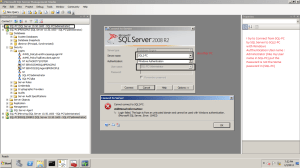
Connect With windows authentication Between 2 SQL Instance in 2 PC in Workgroup


Problem

How Can I Connect With windows authentication from SQL Server instance in PC name (SQL-PC) to another SQl Server instance in Another PC name (SQL2-PC) although this two PC in Workgroup not in Domain  ?????

Solution

It’s very Easy on PC no 1 Create Windows User name Admin With password 123 for Example then Go to the another Server PC no 2 then Create Windows user Name Admin With same password 123

then Add this user in SQl Server instance in PC no 1 and PC no 2  the Try to Connect Form PC no1 to PC no 2 By SQL Server it Will be Connect Direct  but if you Change the User name or the password in any PC SQL Server will give you Error

Connected

Connected

Not Connected

Not Connected

Log Shipping in SQL Server 2008R2 Step by Step


Introudaction

SQL Server Log Shipping Allow to Transfare Data Form one Database  (Primary) to a lot of Database (Secondry) So in Log Shipping we have three Srrvers (Primary , Secondry (optinal) monitor ) . the Secondry Server can be More than one Database

Log shipping involves copying a database backup and subsequent transaction log backups from the primary (source) server and restoring the database and transaction log backups on one or more secondary (Stand By / Destination) servers

#######################################################################################

1-       Create Folder in Primary Server (LogShipping_Primary) aslo in Secondry Server Create Folder Name (LogShipping_Secondry) this two Folders must be sharing .

2-      Take Full and transaction log backup from the database (Log Shipping) in Primary Server.

3-      Restore this Database on Secondry Server with Stand By option.

logShippingDB after Restore

4-      On primary Server Write Click >>> properties  >>> Log Shipping n >>>> Enable log Shipping.

Enable Log Shipping

5-      Configure the backup Setting for the Transaction Log backups

  • Network backup path Folder : the Folder name LogShipping_Primary in Primary Server put the network path for this Folder \\Servername\Foldername
  • Local path : the local path for the folder in primary Server like C:\users\DBA\Desctop\LogShipping_Primary

PrimaryServer backup path

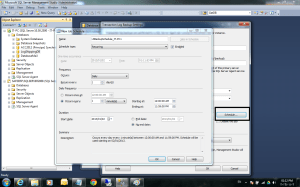
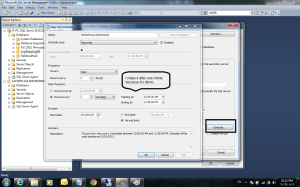
6-      Configure Sechudel job to the backup database

4

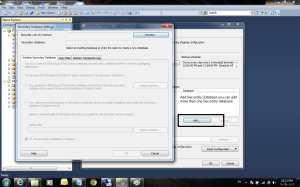
7-      Add Secondry Server

Add Secondry Server

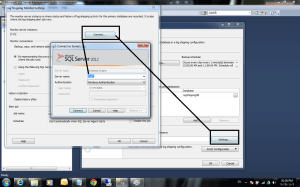
8-      Connect to Select your Secondry Server

6

Select Secondry Server

9-      Initialize Secondry Database

  • First option         : if you want to take Full backup the restore it to the Secondry Server
  • Seconde Option : If you won’t to Restore the backup from the primary Server to the Secondry Server
  • Theird option      : if you Take the backup and already restore it to the secondry server   (like my example)

8-	Initialize Secondry Database

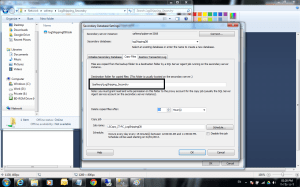
10-      Copy files : in this tabe you will put the path of the Folder in Secondry Server put you will put it like this \\Servername\Foldername

Copy Files

10-      Configure the Sehedule to take the backup files copy from the primary server to the secondry server

10-	Configure the Sehedule to take the backup

11-      Restore transaction log : we will select Standby option and Disconnect all user in restore operation

Restore transaction log

12-      Configure the Sehedule to restore the backup taken from the primary Server

12

13-      Then ok

14-      Optinal (Check on monitor Server instance to monitor the backup Status  and the job Status  for the Jobs in primary Server and Secondry Server

Configure the Sehedule to restore the backup

14

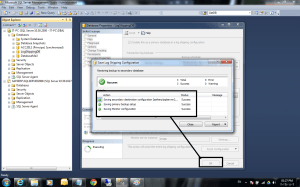
14-      last Step in Log Shiping Configuration

Finish

14-      After you finish from the Log Shipping go to the Primary Server to Check the new jobs

16

15-      Return to the Secondry Server to Check the new Jobs

17

How to monitor Database mirroring


monitor Database mirroring by SQL Management:

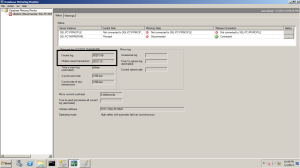
1- I will Stop mirroring Server to input transaction into Principle Server and See the log what happened in It Go to your database Mirroring in Principle Server >> Write Click >>> tasks >>>Lunch Database mirroring monitor

Database monitore

2- Create Table on Principle Server  and insert 10000 Record into New table

CREATE TABLE TEST( A INT, B INT)

DECLARE @I INT=0

WHILE @I <100000

BEGIN

INSERTINTO TEST VALUES(@I,@I)

SET @I=@I+1

END

SELECT COUNT(*) FROM TEST

T-SQL

3- now run the Script and insert the Data then let’s go to Check the monitor to See what happened

3


4

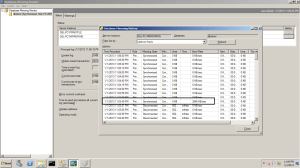
4- Then Start the mirroring Server and Check the Monitor again

5

6

*********************************************************************************************************************

Check the database mirroring information :

SELECT M.database_id , D.Name , M.mirroring_state_desc  ,

M.mirroring_role_desc,M.mirroring_partner_name , M.mirroring_partner_instance,

M.mirroring_witness_name , M.mirroring_witness_state_desc

FROM sys.database_mirroring as M inner join Sys.databases as D

on M.database_id = D.database_id

Where D.database_id > 4

7


How to add or replace database mirroring witness to an existing Mirroring Database?


After i finish my work in Database Mirroring with operation Mode (high Safty ). i explorer it will not be Automatic failover becouse this option if you need it you must configure your mirroring with operation mode (High Availability Synchonous) and this Operation Mode need 3 Servers (Principle , Mirroring , Witness) So i will Show now how to add or Replace mirroring Database Witness Server

1- Now this my mirroing operation mode it’s high safty without automatic and the witness Server not Configure

Mirroring operation mode

2- Click on Configure Secuirty after this mirroring will Ask you if you nedd to Configure Witness Server or not Select yes

Configure Witness

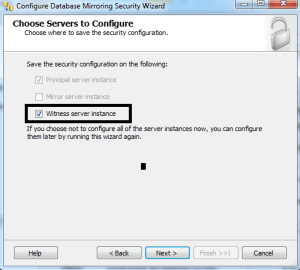
3- Check Witness Server

Check Witness Server

4- mirroring will return the principle server configuration

principle Configuration

5- Select Witness Server

Select Witness Server

6- Configure Witness Server and the port listner

Configure Witness

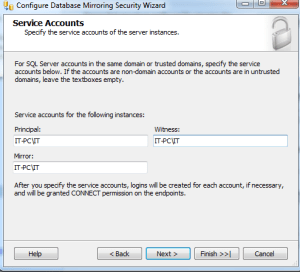
7- Put Services Account in my experince if you working in Workgroup and your all instance in the same windows like thie example create new user Administrator on your pc and add him in SQl Server login the use it ElSE if you use Workgroup but the SQl Servers not all in the Same pc you will use 3 Windows or 2 create Certification in your SQL Server and i will show it in the next post who to create Mirroroing With Login Certification .

Account Services

8- After this Step Click finish No your database witness is Configured

Witness is Configuerd

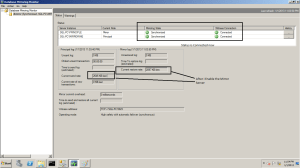
Now your Configuration is Complete and if you comapre between image no 8 and image no 1 you will see the difference you will see now we have Mirroring With operation mode high safty With Automatic failover

NOTE :

in Step no 6 you will See i write the port no is 5023 but when i finish my Steps and arraive to step no 8 then click on ok i reicive this Error :

TITLE: Microsoft SQL Server Management Studio ——————————

Alter failed for Database ‘ACC2012’.  (Microsoft.SqlServer.Smo)

For help, click: http://go.microsoft.com/fwlink?ProdName=Microsoft+SQL+Server&ProdVer=11.0.3000.0+((SQL11_PCU_Main).121019-1322+)&EvtSrc=Microsoft.SqlServer.Management.Smo.ExceptionTemplates.FailedOperationExceptionText&EvtID=Alter+Database&LinkId=20476

—————————— ADDITIONAL INFORMATION:

An exception occurred while executing a Transact-SQL statement or batch. (Microsoft.SqlServer.ConnectionInfo)

——————————

The ALTER DATABASE command could not be sent to the remote server instance ‘TCP://IT-PC:5023’. The database mirroring configuration was not changed. Verify that the server is connected, and try again. (Microsoft SQL Server, Error: 1456)

For help, click: http://go.microsoft.com/fwlink?ProdName=Microsoft%20SQL%20Server&ProdVer=10.50.2500&EvtSrc=MSSQLServer&EvtID=1456&LinkId=20476

—————————— BUTTONS:

OK ——————————

i don’t know what is error i search more and more on the internet but i don’t found good Soluation but when i checked the SQL Server log i see somthing say { SQL Server can not listen to the port No 5023 }

So i Recounfigured the mirroring again and Change the port for the Witness Server form 5023 to 5024 it’s Working now very good so before any thing or before you go to internet Please try to check :

SQL Server log

Windows Event Wiewr

This very good help to know what’s the really problem