Moving Database Files on SQL Server Always On


I think all of us know how to move files for SQL Server databases from disk to another disk but today I will explain how we can do it on SQL Server always on to reduce the downtime and taking new backup to return the database to always-on again. Let us start on the technical steps.

  • Preparations Steps
  • Check the current DB Files locations
  • Check Always on Health Status
  • Disable all backup jobs on Primary and secondary servers
  • Suspend the data movement on Secondary server
  • Remove Database from Primary server
  • Update DB files by new disk location on secondary server
  • Stop SQL Server instance on Secondary server
  • Move (CUT) DB Files from old location to new Location (Past)
  • Start the SQL Server instance again
  • Verify the DB File Location Using T-SQL on the post
  • Join the DB to availability group from Primary server
  • Check SQL Server always on Health Status Using T-SQL on the post
  • Enable the SQL Server Jobs\
  • Failover the SQL Server for Primary (X) to Secondary Server (Y) and do the same steps on (X)

Let’s Start The Technical Demo

Continue reading “Moving Database Files on SQL Server Always On”

Moving Microsoft Azure Resources Using PowerShell


One of the common tasks as an azure administrator you should know it when you deployed azure resource on resource group related for testing as example and you need to move it to new resource group or resource group of production we can do this activity with one PowerShell command and if you are not interested in PowerShell don’t worry you can do also from Azure Portal.

Alert 💣:Moving Azure resource will create new resource id this meaning if you any subscription or APP referencing this resource-id it will break be caution ✍ (Read More, Document the Steps, Test the Steps ) then do your implementation

To know more information about azure services check my (Latest Microsoft Azure Articles and Posts)

Moving Azure Resource Using Azure Portal

Open Microsoft Azure Portal select the source resource group and from the top, you have two option (Move or Change) both you will direct you to move your resource by the selecting the resource you need to move it then the new resource group (Destination) during this steps you can create new resource group easily.

Moving Azure Resource using PowerShell

Continue reading “Moving Microsoft Azure Resources Using PowerShell”

How to hide SQL databases from users using SSMS


I know the First question you will ask it  “Why we need to hidden it IF the user doesn’t have access on it and he can’t do any operation on this DB 🤔” Simple answer “Business needs & Business Case & Management Request” Whatever the answer but this is the request from management So let us see How we can do it using two solutions.

First Solution hide the DB using Permissions

Before starting on the solution, I need to highlight important point “to implement this solution the user will take ownership of the DB” and this will break the security role. To hide the DB, we need two steps after it the user when he will log in to SQL Server management studio, he will see only this database:

  • Deny or remove the permission of View on databases from the Public User on the instance level.

At this time no one will able to see any databases on the SQL Server management studio except the admins only this means you should grant this permission for specific users that you need them to view all databases “It is just view Permission, accessing the DB is another permission”.

  • Change the DB Authorization by the user name you need him to view this DB only or you can do this step on two or three or more databases at this time this user when he login to SQL Server Management studio he will view these databases only the other databases will be hidden.

Technical deployment scripts

Continue reading “How to hide SQL databases from users using SSMS”

Azure Storage Account and Log Analytics


Monitoring Azure Storage activities depend on Azure activity log services and to access this activity log we have three options and to know more information about Azure Storage account check below posts and for all of my posts in azure check this link (Latest Microsoft Azure Articles and Posts)

Activity log: it is like the event viewer in windows when you open the storage account you will find in the left side activity log if you open it you will find all of the activities you do it and when and who do it

Activity log on azure storage account

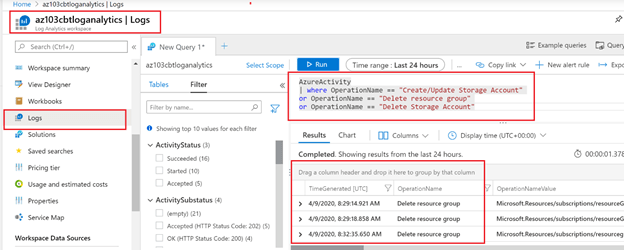
Log analytics: Search about log analytics on the Azure portal search and create new work space then on the left you will find container call “Work space data source” under it you will find Azure activity log if you click on it you will find your azure subscription just only connect the subscription to the log analytics then Go for the left side again and select Log and from here you can query your activity log using KQL query (Kusto Query Language). Look at this post to know more information about (Microsoft Azure Log Analytics).

Microsoft azure Log Analytics

Log Analytics on Activity log: we can add Log analytics as a solution on the activity log on Azure storage account to do that ( You Should Create first step 2 Log Analytics workspace > open Storage account > in the left side select activity log > on the top right side click on log > add > Select the log analytics Workspace you created it > then save > the refresh) IF you return to Log Analytics workspace in the left side select solution you will find the solution you created it.

Keep Following Me

Create Storage Account Using PowerShell and CLI Command


before Creating the Storage account i recommend to read these two articles (Microsoft Azure Storage Kind and Architecture & Managing and implementing Azure storage) first to know more information about the choices and options for Storage account. For more information about the all of the previous Posts and Articles related to Microsoft Azure services (Latest Microsoft Azure Articles and Posts)

IF you are interested to read more articles in the same subject here is below :

To create Storage account we should know some information needed for create process

  • Storage account Name: The name should be unique.
  • Resource Group: Storage account services should be created under resource group and it is recommended both to be in the same location for Example “East US”.
  • Location: Location of the Storage account it deepened on it the features of the storage account because not all features supported on all locations.
  • Account Kind: We have 5 Types (V1, V2, BlobStorage, BlockBlobStorage, FileStorge)
  • Storage Replication: Microsoft provide 6 types of replications depended on the locations and the storage account kind (LRS, ZRS, GRS, RA-GRS, GZRS, RA-GZRS)
Continue reading “Create Storage Account Using PowerShell and CLI Command”