SQL Server 2012 NUMA Node Imbalance – Cont’d


Yesterday, I had posted an issue I been troubleshooting with memory allocation.  That was causing CPU to pin, you can read more about the issue at SQL Server 2012 NUMA Node Imbalance.  Even though I found what was causing it, I didn’t understand the internals well enough to identify the root cause.

Additional testing I discovered this issue is repro on Windows 2008 R2 Server with SQL Server 2012.  It does not seem to fixed that at 4000MB the issue will start; if server is busy, then it can start at a higher value.  In my re-pro test, I found it starting at even 6000MB.

As I said the up front memory allocation and management was contributing to this, however now I am unsure if Locked Pages in Memory is to contribute to this.

However, further insight I learned today.  If this issue exists, you might have Lazy Writer spinning continuously on the effected NUMA node.

Therefore if you execute following T-SQL:

select session_id, wait_type, wait_time, cpu_time, scheduler_id
  from sys.dm_exec_requests
where command = ‘lazy writer’
order by scheduler_id

Look at the output generated, if your Lazy Writer thread is working as normal (aka, only wakes up sometimes) you should see something similar to following:

clip_image002

However if you have this issue the Lazy Writer might look like below:

clip_image002[4]

  • Notice the wait_type has gone to NULL.
  • Notice wait_time has gone to 0 – signal it is not going to sleep like the rest.
  • Notice cpu_time keeps climbing.

Only work around that I know for this currently is, increase the max memory until you see lazy writer stop spinning and processor utilization starts dropping.

SQL Server 2012 NUMA Node Imbalance


One of my client has been fighting a very strange problem and there is not much literature on the topic, NUMA Node Imbalance.

Server Configuration

  • 8 NUMA nodes with 6 cores each; totaling 48 cores.
  • 256GB memory.
  • 12 Instances of SQL Server; mix of SQL Sever 2012 Latest Build and SQL Server 2008 R2 SP2.
    Issue
    NUMA node 0 pinned to 100% when all 12 instances are set to automatic CPU affinity setting.  This is recommended as default, there have been very few cases where I have had to consider changing this.  Generally default is fine, the SQL Server internal engine (or SQLOS)’s scheduler handle is very efficient at distributing load.  So why do we have it that NUMA node 0 was pinned?
    Initial Troubleshooting

Any time we have performance problem on a server that is running SQL Sever instances; my first question to ask is, is it really SQL Sever? Looking at task manager or resource governor, both show highest CPU utilization of under 5%.  This is not surprising, as the CPU in both of these tools provides an average over all CPUs.  Therefore there is no easy way to know which instances were causing the NUMA Node 0 on the server to pin.  There is nothing obvious that is also visible if I filter through the DMV/DMFs with in each instance.

However due to performance issues, my client decided to manually distribute the load across the 8 NUMA nodes by using CPU affinity mask setting.  And sure enough load on NUMA node 0 went down; however he only did it for subset of the instances.  So load decreased from 100% to about 70%.

Research and Investigation

While doing investigation, I only found two KB articles that talk about NUMA node performance issue on SQL Server 2012, KB2819662 and KB2926223. However, all the SQL Server 2012 instances are on latest build; therefore, these hot fixes did not apply.  I also found KB relating to operating system and NUMA processor pressure issues, however all turned out to be not the issue here.  Because even operating system was fully patched.

In order to troubleshoot what is causing CPU pressure issue on NUMA node 0, we decided to move all instances off NUMA node 0 by using CPU affinity mask setting.  In doing so we eventually found instances that was causing the load.  There were 6 instances that were contributing the load.

After investigating we found, locked pages in memory is enabled by default on each instance and found all affected instances had their maximum set to 4000MB.  I remember reading it is no recommended to have maximum memory set to such a low value.  Therefore, we increased it to 6000MB.  Doing so instantly caused the CPU on NUMA node 0 to return to nominal levels.

Details

MaxMemory_at_4GB

Memory settings on SQLInstance01

CPUAffinity_At_Node5

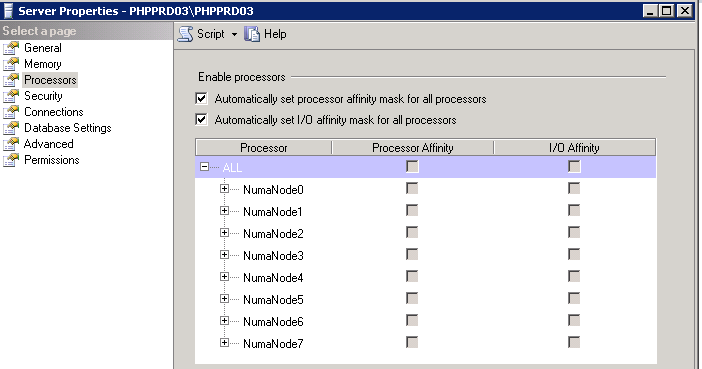
Processor Affinity Mask Setting – Set to NumaNode03 for SQLInstance01

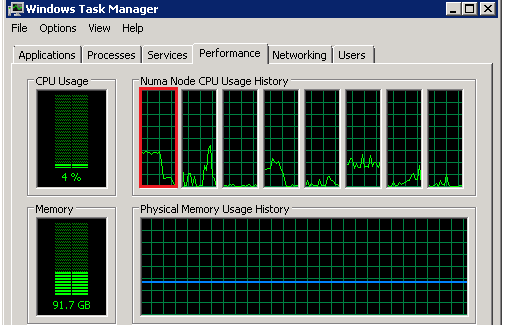
Above is an example of SQLInstance01, set to 4000MB with processor affinity set to NumaNode03.  If I look at the CPU now, there is no issues as in screenshot below.  However load is not running on NUMA node 0 right now.
CPU_LoadBefore_Rebalance

CPU Load on NUMA Node 0 (highlighted in red) – Nominal
CPUAffinity_At_Auto

Processor Affinity Mask Setting – Set to Default for SQLInstance01

Now if I change the instance to use all NUMA nodes, as per the default configuration, as in screenshot above.  Processors on NUMA node 0 start to pick up again. Notice the change was almost instantaneously.  Since I only did it for one instance it did not cause processor to pin to 100%; however hovered around 40% constant.  Imagine that times 6 instances, no wonder NUMA node 0 was pinned to 100%.

CPU_LoadAfter_Rebalance

CPU Load on NUMA Node 0 (highlighted in red) – After Affinity Set to Auto in SQL Server

Now if I adjust the max memory setting to 8000MB (I tested it with 6000MB); both settings, processor returned to normal performance; as per the screenshots below.

MaxMemory_at_8GB

Memory setting on SQLInstance01 – Setting it to 8000MB

CPU_LoadAfter_Rebalance_MemoryUpdate

CPU Load on NUMA Node 0 (highlighted in red) – After setting the Memory to > 4000MB

Summary

If you are using 64-bit of SQL Server (which is all version now) and have locked pages in memory enabled.  Be careful in setting the maximum memory value to a low value.  Because of locked pages in memory additional work needs to be done by SQL Server to manage the memory and from looks of it all this work is happening on NUMA node 0.  I do not know if this is by design.  However setting the memory to value higher then or equal to 6000MB resolved this issue.

I’ll follow up on this if I have any updates, as I’ll be raising the issue internally also.

This post is cross posted on my SQLCAN Blog, MSDN Blog, and SQL server Consultation blog.

Transaction Log Corruption and Backup In SQL Server


Introduction

Corruption of SQL Server transaction log files is complicated because its consequences aren’t major except for the fact that they result in the failure of backups. However, that as well is a necessary task to be performed by every server admin for business continuity and thus, must not be ignored.

I/O subsystem is the culprit in most cases of Transaction Log file corruption just like a data file. Till the time this damage has been caused to the active portion of the file – required by SQL Server for some reason – it is possible that the cause remains unknown for a long duration. This may result in a major disturbance because corruption, which is undiscovered, will take equal amount of time in being rectified too, which may make the condition much worse too in the meantime. However, SQL Server has no way of detecting the corruption anyway before any kinds of consequences are surfaced. In order to detect the damage, the server will have to process the complete log file and that too particularly the active parts.

DBCC CHECKDB is a built in utility provided for examining database integrity in SQL Server. Continue reading “Transaction Log Corruption and Backup In SQL Server”

Difference between auto update statistics and auto update statistics asynchronously


Dear readers,

Please find the interview question and its answer based on statistics in SQL Server.

How to find auto update statistics and auto update statistics asynchronously options in SSMS:

Right click on your database–> Go to Properties…> options

Stats

The query optimizer uses statistics to create query plans that improve query performance.

AUTO_UPDATE_STATISTICS Option

As from snapshot above, by default its value is true.

When the automatic update statistics option, AUTO_UPDATE_STATISTICS, is on, the query optimizer determines when statistics might be out-of-date and then updates them when they are used by a query. Statistics become out-of-date after insert, update, delete, or merge operations change the data distribution in the table or indexed view. The query optimizer determines when statistics might be out-of-date by counting the number of data modifications since the last statistics update and comparing the number of modifications to a threshold. The threshold is based on the number of rows in the table or indexed view.

The query optimizer checks for out-of-date statistics before compiling a query and before executing a cached query plan. Before compiling a query, the query optimizer uses the columns, tables, and indexed views in the query predicate to determine which statistics might be out-of-date. Before executing a cached query plan, the Database Engine verifies that the query plan references up-to-date statistics.

The AUTO_UPDATE_STATISTICS option applies to statistics objects created for indexes, single-columns in query predicates, and statistics created with the CREATE STATISTICS statement. This option also applies to filtered statistics.

Auto Update Statistics Asynchronously 

The default setting for this option is disabled.

The asynchronous statistics update option, AUTO_UPDATE_STATISTICS_ASYNC, determines whether the query optimizer uses synchronous or asynchronous statistics updates. By default, the asynchronous statistics update option is off, and the query optimizer updates statistics synchronously. The AUTO_UPDATE_STATISTICS_ASYNC option applies to statistics objects created for indexes, single columns in query predicates, and statistics created with the CREATE STATISTICS statement.

Statistics updates can be either synchronous (the default) or asynchronous. With synchronous statistics updates, queries always compile and execute with up-to-date statistics; when statistics are out-of-date, the query optimizer waits for updated statistics before compiling and executing the query. With asynchronous statistics updates, queries compile with existing statistics even if the existing statistics are out-of-date; the query optimizer could choose a suboptimal query plan if statistics are out-of-date when the query compiles. Queries that compile after the asynchronous updates have completed will benefit from using the updated statistics.

Consider using synchronous statistics when you perform operations that change the distribution of data, such as truncating a table or performing a bulk update of a large percentage of the rows. If you do not update the statistics after completing the operation, using synchronous statistics will ensure statistics are up-to-date before executing queries on the changed data.

Consider using asynchronous statistics to achieve more predictable query response times for the following scenarios:

  • Your application frequently executes the same query, similar queries, or similar cached query plans. Your query response times might be more predictable with asynchronous statistics updates than with synchronous statistics updates because the query optimizer can execute incoming queries without waiting for up-to-date statistics. This avoids delaying some queries and not others.
  • Your application has experienced client request time outs caused by one or more queries waiting for updated statistics. In some cases, waiting for synchronous statistics could cause applications with aggressive time outs to fail.

Thanks for reading!!

Your suggestions and likes will be appreciated


Follow Us :

LinkedIn Slideshare ,Youtube Channel.MSDN POSTS , WHO WE ARE

Customized Database-Server Alert Part#2


Hi my followers today i will complete on the series of the SQL Server Customized Database-Server Alert as i started the first post Part#1 and i explained on it on of the most important Database alert (SQL Server Database alert) and i do one Stored procedure to monitor the database status and to send Immediate alert and today i will add two new alerts :

Part#1 

Read_only Database Report : 

USE msdb
GO
SET QUOTED_IDENTIFIER ON
SET ANSI_NULLS ON
GO

— =============================================
— Author: Mustafa EL.Masry
— Create date: 16/09/2015 01:52 PM
— Description: Report by all Database are in read_only Mode
— We are Exceulded the Drive Name E
— =============================================
Create Proc [dbo].[ReadOnlyDatabasesReport]
@profile_name_P Nvarchar(500) =’DBMailProfile’,@recipients_P Nvarchar(500) =’SQLGULF@MostafaElmasry.com’
AS
begin
Set NOCount on
declare @p_subject Nvarchar(500)
SET @p_subject = N’Databases in Read_Only Mode on DB Cluster ‘ + ( CAST((SELECT SERVERPROPERTY(‘ServerName’)) AS nvarchar))

—Send the mail as table Formate
if(select count(*) from sys.databases where is_read_only <> 0 )>0
Begin
DECLARE @table NVARCHAR(MAX) ;
SET @table =
N'<H2 style=” color: red; ” >Read_only Mode Databases Report</H2>’ +
N’ <span style=” font-size: 16px;” >Urgnet this list by Databases are in the Read_only mode please take immediate action to fix it or Exclude it from the Alert </span>’ +
N'<table border=”1″>’ +
N'<tr><th>Database Name</th><th>Database Status</th></tr>’ +
CAST ( ( Select td=name, ”,td=is_read_only from sys.databases where is_read_only <> 0
FOR XML PATH(‘tr’), TYPE
) AS NVARCHAR(MAX) ) +
N'</table>’ ;
EXEC msdb.dbo.sp_send_dbmail
@profile_name=@profile_name_P, –Change to your Profile Name
@recipients=@recipients_P, –Put the email address of those who want to receive the e-mail
@subject = @p_subject ,
@body = @table,
@body_format = ‘HTML’ ;

END
Else Print ‘All Databases are in Read_Write Mode’

END

Continue reading “Customized Database-Server Alert Part#2”