WordPress Annual Report to my SQL Server Community


I completed 4 Years as SQL Server blogger with my small Community SQL Server Consultation Community (http://mostafaelmasry.com)

I started it from 2012 and I will not stop sharing the information ad the new Technology in SQL Server

You can check the WordPress annual Report for the last 4 years from here


WordPress Annual Report to my SQL Server Community


SQL Server Transaction Log Backup Failing (Error 22029)


A Transaction Log is a file that contains all the records of transactions and the database modifications made by each transaction in SQL Server database. The log file plays a very important part of SQL Server database when it comes to disaster recovery and it should not be in corrupted state. There are several types of errors we came across while using SQL Server and one of the most common error is Failure in SQL Server Transaction Log or Error 22029. This page will be discussing about the same error in details.

SQL Server Transaction Log Backup Failing

Why It Occurs?

SQL Server Error 22029

This error in associated with the maintenance plan of the transaction log back up or maintenance plan options for the database in SQL Server.

There are many reasons why the above error in SQL Server occurs-

  1. The SQL Server transaction log backup error 22029 may be seen if your database maintenance plan is trying to make a transaction log backup of a database that is offline.
  2. It may occur when you try to create transaction log backup and when the database is using the simple recovery model.
  3. It may occur if you select the master database and you choose backup the transaction log as part of the maintenance plan option.
  4. This error may also be seen if the string for the target folder (where the database backup will be stored or the one used for transaction log backup or one used for reports) in the maintenance plan contains “-S”
  5. It may happen if you have less disk space for the transaction log backup.
  6. If the multiple databases are backed up in a single maintenance plan, this error might show up.
  7. In addition, it may occur if you have no right access permissions or authority. Example- the SQL agent does not have write access to the file storing the database backups.

How It Can Be Resolved?

One thing that should be kept in mind while creating maintenance tasks is to check the “write report to a text file in directory” so that all the details of whatever happening during the maintenance task is seen, especially when there is any error.

Database Maintenance Plan

  1. The reason why the first error occurs can be solved by connecting the database to the server. So that, the log of that database can be backed up successfully with the maintenance plan as the database is online.
  2. While creating the maintenance plan for transaction log backup under simple recovery model, we may find error. Why is it so?
    The simple recovery gives the simplest form of backup and restore. It supports both database and file backups but does not support log backups. The absence of log backups simplifies managing backup and restore.

    Tips: The simple recovery model is not appropriate for systems where loss of recent changes is unacceptable. In such cases, full recovery model is preferred.

    We should never run a transaction log backup on a database in the Simple Recovery model. Even though there is option to select all databases, we can select either database that are not in Simple Recovery model or change the database to the Full or Bulk-logged Recovery models to avoid this error. This problem has been fixed in SQL Server 2005 as the databases in simple recovery are ignored automatically.

  3. The third error says we cannot select master database and choose backup of transaction log because only full database backups of master database are allowed. Hence, we can create a separate maintenance plan for master database and not backup the transaction log or set master database to Full recovery and do transaction log backup.
  4. To solve the fourth error, we will not use strings that contain “-S” for a directory path. It only occurs on named instances of SQL Server 2000.
  5. The problem with less storage can be solved by allocating more disk space.
  6. If the error occurred due to sixth reason, then we can select a single or some databases while back up and keep in mind the type of recovery models with respect to transaction log backup.
  7. To perform transaction log backup of the database, we need to configure MS SQL Server to run under a user account that has administrator privileges to the machine.

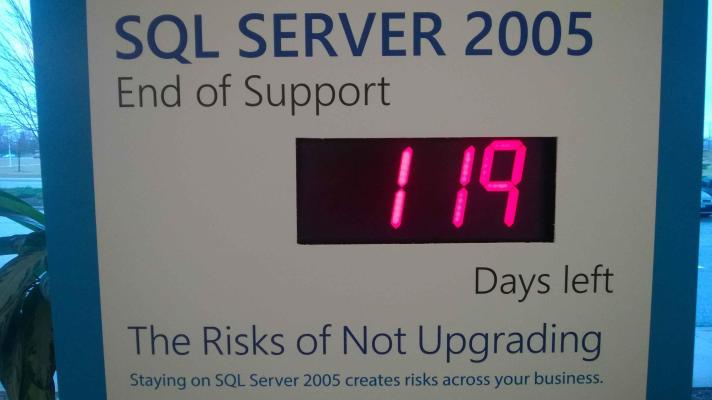
SQL Server 2005’s end-of-life clock is ticking down


After 10 great years, extended support for all versions of SQL Server 2005 is coming to an end on April 12, 2016 it is the time for Upgrade to SQL Server 2014

Upgrading is not just a maintenance task, but an opportunity to provide new value to your business. Moving to SQL Server 2014 or Azure SQL Database enables you to achieve breakthrough performance:

  • SQL Server 2014 has been benchmarked to be 13 times faster than SQL Server 2005, before the additional performance gains available from in-memory OLTP.
  • AlwaysOn availability groups provide more reliable High Availability.
  • Together with Windows Server 2012 R2 you can scale up across compute, networking and storage.
  • New tools in SQL Server Management Studio provide an easy on-ramp to cloud to help you get more from your data platform investment.

fa1f03a8-7ff3-41c6-8849-7500136bfee9-original

Reference

http://blogs.microsoft.com/blog/2015/04/13/are-you-still-running-sql-server-2005-now-is-the-time-to-upgrade-to-a-modern-data-platform/

Six Benefits to Planning for SQL Server 2005 and Windows Server 2003 End of Support Now

http://blogs.technet.com/b/dataplatforminsider/archive/2014/12/16/six-benefits-to-planning-for-sql-server-2005-and-windows-server-2003-end-of-support-now.aspx

http://www.infoworld.com/article/2910315/database/sql-server-2005s-end-of-life-clock-is-ticking-down.html


SQL Server 2016 Community Technology Preview 3.1 is available


Configurations for all Microsoft SQL Server 2016 followers and for the guys are interested to know more and more about this new technology Microsoft released version no 3.1 CTP from SQL Server 2016 and it released new improvement in this version (In-Memory OLTP) i will explain it later in detail but now for more information and for downloading this new version you can check it from Here

Also to cover all the new updates in SQL Server 2016 you can check it from Here

To know More about new feature in SQL Server 2016 you can check it from HERE

Follow Us :

LinkedIn Slideshare ,Youtube Channel.MSDN POSTS ,Facebook WHO WE ARE


sys.foreign_keys does not have matching row in sys.indexes


Running DBCC CHECKDB you are getting following error message:

Check Catalog Msg 3853, State 1: Attribute (referenced_object_id=194099732,key_index_id=7) of row (object_id=2040565179) in sys.foreign_keys does not have a matching row (object_id=194099732,index_id=7) in sys.indexes

This error means, that Unique key constraint (index_id 7) in the primary table (object_id 194099732) is missing, which was referenced by child table’s FK constraint (FK object_id 2040565179).  This should not happen, SQL Server will not allow you to drop a constraint that is referenced by FK.  If attempted should get following error message:

Msg 3723, Level 16, State 6, Line 1
An explicit DROP INDEX is not allowed on index ‘dbo.a.NonClusteredIndex-20151119-085219’. It is being used for FOREIGN KEY constraint enforcement.

So if we are suppose to get errors? Why do we have corruption; simple answer, someone be making updates to system tables directly, which is not allowed or supported!

Actually we are not able to update system tables in SQL Server 2005+ (ref), however in SQL 2000 days, we had setting called allow updates in sp_configure options.  Also supported by the KB2787112.

So question is how do you fix it?

First, identify the child table name from sys.foreign_keys:

SELECT object_name(parent_object_id) AS TableName
  FROM sys.foreign_keys
WHERE name = ‘FK_b_a’

Second, script our constraint definition:

  1. Find the table, we got in SQL Statement above.
  2. Go to Keys.
  3. Right click on FK constraint name.
  4. Script Key As.
  5. Create To.
  6. New Query Window.

Third, drop the FK constraint:

ALTER TABLE [schema].[tablename] DROP CONSTRAINT [fk_constraint_name]

Fourth, Re-create the constraint, with script generated in Step 2.

If it was issue of someone playing around in system tables, this should resolve it.  However, if you get error similar to below:

Msg 1776, Level 16, State 0, Line 1
There are no primary or candidate keys in the referenced table ‘dbo.a’ that match the referencing column list in the foreign key ‘FK_b_a’.

This means, that the key is missing in parent table and appropriate index needs be created before FK constraint can be created.  Since SQL doesn’t allow the index to be dropped there most likely are other corruption issues that have gone unnoticed.  If that is an issue, you will have to rely on your backups for recovery.

This post is cross posted on my SQLCAN Blog, MSDN Blog, and SQL server Consultation blog.